My AC Rally tools
Every stage, your way
I’m a hobbyist. I make these tools for fun and to get more out of Assetto Corsa Rally.
Both tools are open source. No tracking, no telemetry sent, no monetization.
Plans & roadmap
Ideas I’d like to explore. None are available yet.
StageSwitch: automatic car setups
I want StageSwitch to load my preferred car setup automatically when I enter the staging area, using the preferences I’ve saved in StageSwitch. If I haven’t set a preference, it could use a preset already marked for the stage’s surface (like gravel or tarmac) in Assetto Corsa Rally as a sensible default.
Career tracker and stage stats
I want to use what I learned recording runs in MozaHud to build a browser-based career tracker. I’d like to see the details of each stage and how my stats change over time. I want to play with Solid 2.0. Sometimes you just need to find a reason to try new tech. :D
Linux support
Ubuntu is my daily driver, but I don’t game on it. If I get bored, I might look into getting both tools to run on Linux.
Found a bug?
Did something go off track? Open an issue in the tool’s GitHub repo and tell me what happened and how to reproduce it. If you can fix it yourself, vibe-coded pull requests are welcome. Just give the fix a test run first!
 StageSwitch
I made StageSwitch so I don’t have to change my force feedback (FFB) gain between stages. I can set a default for a rally and override it for a stage or for a particular car on that stage. StageSwitch applies the saved settings when the stage loads.
- Optionally set the render resolution scale per stage.
- Save the adjustments you make in the game during a run.
Requires 64-bit Windows.
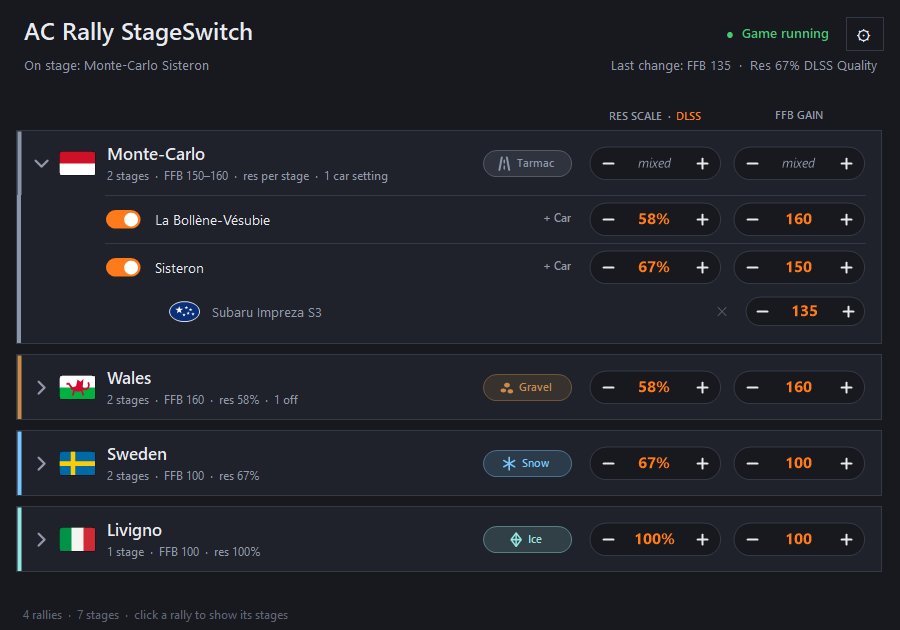
How StageSwitch works
Set your preferences
Set a default for the rally, then fine-tune a stage or car. Here, Sisteron uses a gain of 150, except for the Subaru Impreza S3, which gets 135. Load the stage

Load Sisteron in the Subaru. StageSwitch applies the saved gain automatically, plus the 67% DLSS scale if per-stage resolution is enabled. The optional in-game popup confirms the change. Learn from in-game changes

With learning enabled, change the gain in the game while on a stage and StageSwitch saves it for next time. Here, it saves 145 for the Subaru on Sisteron. It can also learn resolution changes if per-stage resolution is enabled.
 MozaHud
I started MozaHud because I wanted to see my MOZA R5’s motor temperature in RivaTuner Statistics Server. Then I added torque graphs in newton-metres (Nm). It grew into a tool that spots when the wheelbase hits its limit (clipping) and suggests a force feedback (FFB) gain for the car and stage.
- Record runs automatically in Assetto Corsa Rally.
- Show live wheelbase readings with MSI Afterburner and RivaTuner.
Requires Windows 10 or 11 and a MOZA wheelbase connected by USB. I’ve tested it on my MOZA R5 and expect it to work with all MOZA wheelbases.
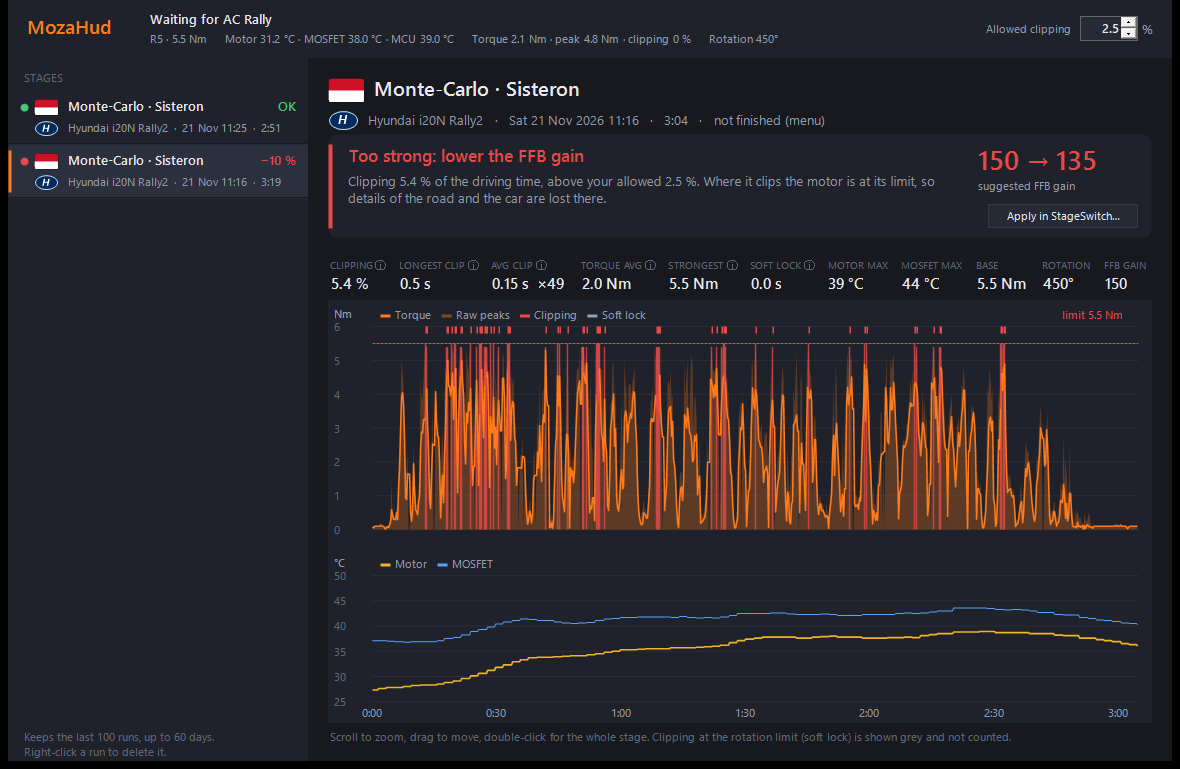
How MozaHud works
Record a run
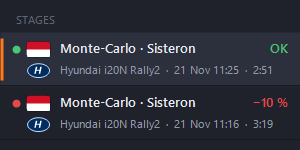
Leave MozaHud running and drive a stage. It records automatically and lists each run by stage and car. Spot clipping
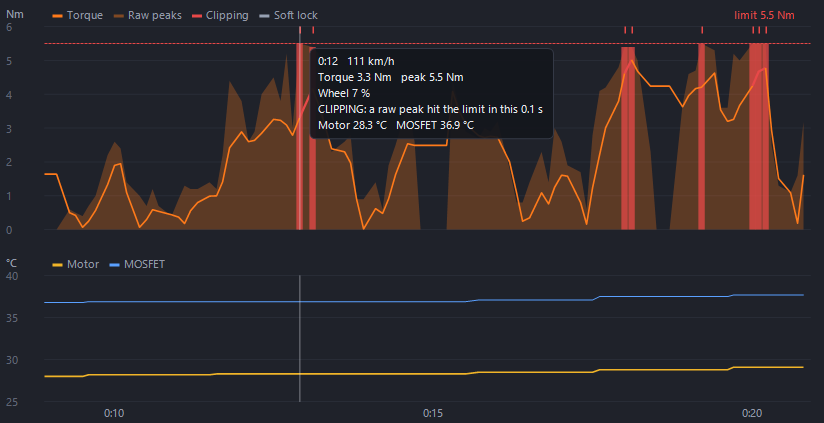
Zoom in on the torque graph. Red bars mark where the base hit its limit, like this 5.5 Nm peak 12 seconds into the run. Review the gain advice

MozaHud compares the run with your clipping limit and suggests a lower gain if needed. Here it recommends 135 instead of 150.
Using the tools together
Both tools work on their own. If I have both open, I can send MozaHud’s suggested gain to StageSwitch and choose whether to save it for the car on that stage, the whole stage, or the whole rally. StageSwitch applies it the next time I load the stage.